The Wisconsin Technology Initiative, with funding from the Morgridge Foundation, is hosting their 2012 WTI Academic Forum: Transforming Today's Classroom.
This is an opportunity for all of you to come together, share, collaborate and most importantly, learn how you can take the next steps in using classroom technology to transform your approach in meeting the needs of all students.
More details and registration information can be found on the WTI registration page at: Click HERE.
"The discrimination of the future will not be based on race, but on education. Those without education will find no place in our highly sophisticated, technical society."
~Dr. Martin Luther King Jr.
KHS is looking for several staff members who are interested in attending the 2012 SLATE conference in Wisconsin Dells on December 4th and 5th. To learn more about the SLATE conference, please check out their website by clicking HERE.
We have all been to a conference that was full of disappointment. Perhaps the keynote speaker was drab and predictable. Maybe the sessions you attended were uninspiring, or not quite what you hoped them to be. Perhaps you looked at the program and thought, "This isn't how I would have done it". Well here is your chance.
Two years ago, a group of educators got together and created the first educational EdCamp. EdCamp is a grassroots movement that puts professional development back into the hands of the teachers. EdCamps should not be confused with traditional education conferences; these are events organized by local groups of educators who strive to create an UNconference environment that encourages participant-driven discussions in an informal area. There are several benefits of attending EdCamps, including: free attendance, flexible agendas, group brainstorming sessions, local networking opportunities, and much more!
I would love to have our own EdCamp here at KHS. Are you interested? If so, email or call me.
An article on NYU Local explores the policy at the University of New York that allows each professor to decide whether or not they will ban electronic devices within their classroom/lectures. It is a great article, that brings up some excellent points. I really found it insightful to read through the comments. First of all, they were articulate and intelligent! How often can you say that about comments to an online story?
Educaplay is a free site that allows YOU to create your own PERSONALIZED multimedia teaching activities. These include Riddles, Crosswords, Wordsearch Puzzle, Fill in the texts, Dialogues, Dictations, Jumbled Word, Jumbled Sentence, Matching, Quizzes, and Interactive Maps. Examples of these activities: Interactive "Map" Example (Muscle Anatomy) Crossword Puzzle Example (Astronomy) Riddle Example (Poetry Genre) Jumbled Word Example (Teacher at KHS)
5 Reasons You Should Use Google Chrome over Internet Explorer & Firefox:
It's the only web browser supported by our IT department.
The technology department will only be updating and supporting Google Chrome
It's faster and has fewer crashes than Internet Explorer or Firefox.
Google simply works better. I've been a long time user of Firefox and I resisted changing, but since I switched I couldn't be happier
It contains great apps.
Google has numerous apps that you can download to your computer/web browser. These apps will not only make you more productive but can also be fun to explore.
It syncs well will your other Google apps.
You can create quick apps to your g-mail, calendar and Google documents.
It will make you a more efficient teacher
Google Chrome has great apps to help you in the classroom.
Today’s Meet is a backchannel room (backchannel is using a website to maintain an online conversation alongside your live spoken remarks) that allows you to connect with your audience in real-time. It is totally free and you don’t have to register to get an account. Join the Backchat that I created by clicking on the following link: http://todaysmeet.com/khs
Name your room and choose how long you want it to remain open (2 hours up to 1 year…)
Click on “Create your room”
Share the link with your class/colleagues
If you want to get a copy of all the messages, just click on the “Transcript” at the bottom of the page. All the comments are listed order so the latest ideas appear at the top.
5 WAY TO USE TODAY’S MEET IN YOUR CLASSES:
Start class discussions on various topics, weekly or monthly. (e.g: movie, celebrities, books, poems, etc…)
Create rooms depending on students’ needs so that they can ask everything about any issue. (e.g: create a room “midterm2” before the exam for students to ask questions about midterm 2 )
Have a backchannel discussion while the class watches a video
Have students ask questions during a lecture. This will increase class "participation" without disrupting the flow of class
Use it for group projects. Students can create their own rooms and discuss the details of their projects or assignments here.
It's a fancy way of saying MOVING TEXT. Kinetic typography is the art form of using movement to help express the meaning and feelings of words.
The next time you want to have students read something that you believe to be powerful, see if you can find it in Kinetic Typography. If actions are more powerful than words, imagine the power when you combine them.
Taylor Mali
"Language" by Stephen Fry
"I have a dream" - Dr. King
A playlist of over 100 examples of Kinetic Typography
From Toy To Tool Using Cell Phones In The Classroom
While many teachers have struggled with the intrusion of these electronic devices within the classroom a growing number of teachers are slowly realizing the massive learning potential that these devices posses. Cell phones are here to stay. They are as much a part of a student's life as pop tarts and energy drinks (and surprising, more nutritious). The power of these devices has not been fully utilized within the classroom. Perhaps now is the time to change that.
Below you will find 10 easy ways that a teacher can utilize cell phones in their classroom. While attempting to integrate all 10 of these is unrealistic, perhaps one or two could be embedded into your lesson this week.
10 Ideas For Including Cell Phones In Your Class:
1. Poll. Student respond to online polls or quizzes (www.polleverywhere.com/). 2. Communicate. Send your students mass reminders (http://remind101.com/). 3. Text. Have students text a short summary of a lecture, a reading, or use them as a"ticket to leave". 4. Utilities. Have students use their built in tool (such as their stopwatch, calculator, calendar, reminders, unit converter) to perform an activity for class. 5. Read. Use it to read an article, a current events story or a book (You may not like reading on a phone but the kids are fine with it). 6. QR Codes. Experiment with QR codes, into which you can embed text, url, phone numbers, and sms.. 7. Research. Use a text-messaging search service or an app that allows students to look up a variety of facts. 8. Dictionary. Students can benefit from being able to query the definition of a word. Additionally, students who are English learners can benefit from translation dictionaries. 9. Voice Recorder. Use the phones voice recorder to create interviews and conduct questionnaires. 10. Camera/Video camera. Use the camera or video camera to demonstrate understanding of a concept.
Earlier this year we introduced you to Fakebook, a site that allows individuals to create fake Facebook pages. Today, we would like you to look at the parent site to the Fakebook program, Classtools.net.
Would you like to create a scavanger hunt using QR Codes? Possibly, you would like to have your students create an online review game for your latest chapter. Perhaps you need a program that randomly selects student's name. Maybe you're looking for a simple countdown timer. Perhaps what you really need are diagrams and graphics that you can edit.
All of these, and so much more, can be found on Classtools.net. This site was created over 10 years ago by a British teacher and it allows users to create free educational games, quizzes, activities and diagrams in seconds!
While the site may not be pretty to look at, it is easy to use and has great resources for students and teachers.
Cellcom is excited to announce the nine high Fox Cities schools that will be participating in the 2011 Project Innovate community voting program. The top vote-getter in Project Innovate will receive $30,000 from Cellcom, exclusively for the purchase of technology. Second place will receive $15,000 for technology and third place will take away $5,000. The remaining six schools will each receive a Motorola Xoom™ tablet.
Participating Schools:
·Appleton East High School
·Appleton North High School ·Appleton West High School
·Kimberly High School ·Little Chute High School
·Neenah High School
·St. Mary Central High School ·Wisconsin Connections Academy
·Xavier High School
Voting Period:
Project Innovate voting begins at 8:00 a.m. (CDT) on October 24, 2011 and ends at 11:59 p.m. (CDT) on November 22, 2011.
Casting a Vote:
To vote, go to Cellcom.com, click on ‘Project Innovate,’ enter your email address and vote for Kimberly High School
Tips for Mobilizing Supporters:
Have each class vote whenever you use a computer lab/COW.
Encourage students to "Share" this using social media (Facebook, Twitter, YouTube...)
About museumbox.. If you could put a number of items into a box that described your life, what would you include? What do you think would be included if you were a Victorian Servant or Queen Elizabeth I. If you lived during the English Civil War, what items would you include to make a case for, or against, the parliamentarians? And what if you were an abolitionist and wanted to show that slavery was wrong and unnecessary, how would you create your evidence.
So what does museumbox do?
Museum box provides the tools for you to do just this. It allows you to build up an argument or description of an event, person or historical period by placing items in a virtual box. You can display anything from a text file to a movie. You can also view the museum boxes submitted by other people and comment on the contents.
Can I see examples?
Click HERE to see examples created by KHS students.
With PowerTeacher Mobile, teachers are no longer constrained to their desk or laptop when using the gradebook.
Now you can record student scores, add new assignments and make observations about student progress from nearly anywhere in the world.
NOTE: When you download the app it will ask you to "sign in" to PowerTeacher. Use your regular username and password. However, instead of having it search for your school you need to complete the following steps:
Click on the "Settings" button in the upper right-hand corner.
Click on the "Server" button on the left side of your screen.
Delete the current "Port Number" and enter 80.
Go back to the main screen and you should be all set to find Kimberly High School.
The internationally recognized series of Horizon Reports is part of a research project established in 2002 that identifies and describes emerging technologies likely to have a large impact over the next five years.
I thought you might find it interesting to see what is predicted to be the "next big thing."
Have students create a fake Facebook page for a famous author, scientist, historical figure, fictional character, renowned chef, business leader, inventor, theorist, mathematician.... the possibilities are endless.
This quick and simple project can be saved and shared with the click of a button. Click here to see a 90 second tutorial or check out the example below.
Matt MacInnis And Inkling Are Reinventing Textbooks For Tablets
First Posted: 8/29/11 01:16 PM ETUpdated: 8/29/11 01:49 PM ET
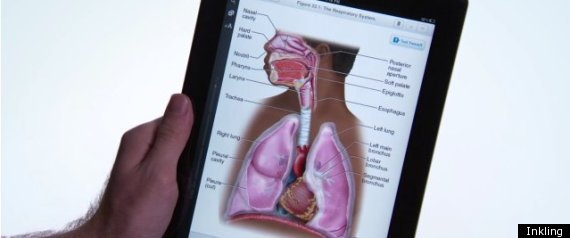
Inkling, a digital textbook company started by ex-Apple education exec Matt MacInnis, wants to make textbooks more like computers.
MacInnis told HuffPost that e-textbooks should be specially converted for digital consumption. They should be more, he said, "than just flat scans of the original material" -- a not-so-subtle dig at Inkling’s main competitor, digital textbook seller Kno. What makes Inkling’s textbooks better, MacInnis said with a bit of braggadocio, is that they "change the way information is consumed."
"There’s a generation that's grown accustomed to collaboration, searchability, and accessibility," MacInnis said. "The textbook is this horrible outlier. It’s isolating. Expectations have changed dramatically; the products that students use to learn have not caught up."
Inkling has released the 2.0 version of its iPad app, and the features it is rolling out drastically improve its -- and this will sound familiar to those of you who read the preceding paragraph -- collaboration, searchability and accessibility. It has added a journal panel, which combines all of the student's notes, highlights and questions; integration with Google and Wikipedia for in-book searching; per-chapter purchases, where students can buy one chapter from a textbook at a time from $2.99 per chapter and, perhaps most impressively, a live "expert" attached to each book -- often the author of the book itself -- who gives notes in addition to the book and can answer questions asked within the book's interface.
WATCH a (rather one-sided) Inkling-produced video about the advantages of their textbooks:
Though the journal panel, Google integration and social question-and-answer features are nice and necessary innovations for students. These are also e-textbook features that Inkling competitor Kno had added a few weeks prior, however. The major advantage of Inkling's digitized versions of the big publishers' textbooks is still that it presents the information in a way that makes you feel like you are gaining something from having your material on a tablet besides portability and convenience.
Inkling designs its textbooks with interactivity in mind. MacInnis displayed a music textbook that had audio clips and sheet music in line with the text, an American history book with documentary footage in video form and a biology textbook with 3D renderings of bones and muscles and molecules that you could spin around to see each part from every side.
WATCH MacInnis explain the advantages of his company's anatomy textbook with the pitch that "you’ll be a better doctor" if you use Inkling's edition:
Inkling’s anatomy and biology textbooks might not make you a better doctor, but they could make you a better medical student: Digital textbooks just make more sense for science subjects, and an informal survey of medical student friends reported that Inkling's books are much more intuitive and smarter than the heavy texts currently in use.
But what about subjects that aren't inherently visual? Take, for example, a chapter from Inkling’s edition of "Give Me Liberty!," an American history textbook. While e-books are generally cheaper than physical textbooks and undoubtedly lighter, this one in particular did little to "reinvent" the source material. To be fair, it's hard to imagine what could be done with the era from 1800 to 1840 to utilize a tablet's core strengths -- though, it would be a good start to make anything on a map that changes over time into a video, or a GIF or something that can really visualize the change.
Inkling can pump out a new textbook in about 4 to 6 weeks, according to MacInnis, and right now they are approaching 100 natively-rendered e-books. MacInnis said that these books make up over 50 percent of the textbooks used in the United States, but when you compare this with the over 100,000 books that Kno has scanned for iPad, with the same basic note-taking and social media features, most non-scientists might just choose based purely on price and the convenience of having all their receipts from one place.
MacInnis worked in Apple's education wing for 10 years, and recalled a particular visit to a classroom where Apple was piloting laptops for students. He became frustrated by the disconnect between the computer and the book, he told HuffPost. "We’d be giving students $1400 laptops," he said. "And then the teachers would say, 'Turn to page 176.' And I would be like..."
He made a low, guttural sound and shook his head to express his disappointment with the physical textbook, from its flatness to its inability to move.
The crowdsourced social knowledge and Notebook (and price discount) are good first steps toward changing the format of the 21st century textbook that caused MacInnis to shake his head in disgust ten years ago -- and Inkling is on its way toward reinventing the look and functionality of the digital textbook. In order to truly deserve the entirety of the tablet-toting student market, however, MacInnis and Inkling will have to continue to reinvent.
Convert Units: You can use Google to convert between many different units of measurement of height, weight, and volume among many others. Just enter your desired conversion into the search box and we’ll do the rest.
Get a definition. If you want a definition without having to track down an online (or a physical) dictionary, just type “definition:word” to find the definition of the word in your results (i.e.: “definition: serendipity” will track down the definition of the word “serendipity”).
Search within a specific kind of site. If you know you only want results from an educational site, try “site:edu” or for a government site, try “site:gov” and your search term to get results only from sites with those web addresses.
Search within a specific website. If you know you want to look up Babe Ruth in Wikipedia, type in “site:wikipedia.org Babe Ruth” to go directly to the Wikipedia page about Babe Ruth. It works for any site, not just Wikipedia.
Calculate with Google. Type in any normal mathematical expressions to get the answer immediately. For example, “2*4″ will get you the answer “8.”
Google Scholar. Use this specialized Google search to get results from scholarly literature such as peer-reviewed papers, theses, and academic publishers.
Make a study group with Google Groups. Google Groups allows you to communicate and collaborate in groups, so take this option to set up a study group that doesn’t have to meet face-to-face.
Google Code University. Visit this Google site to have access to Creative Commons-licensed content to help you learn more about computer science.
Learn what experts have to say. Explore Knol to find out what experts have to say on a wide range of topics. If you are an expert, write your own Knol, too.
Create online surveys for research projects. Quickly and easily create online surveys for any research project that requires feedback from others. The answers are saved to your Google Docs account.
Use the Tasks as a to-do list. Use the Tasks available in Gmail as a way to stay on top of assignments, exams, and project due dates.
Highlight mail with labels. Use labels to mark your messages. You can find them easily while in your inbox and do a search for all the messages with that label after you archive them
Consolidate email accounts. If you have a Gmail account, an account through school, and any other account you are juggling separately, combine them all into Gmail to cut down on time spent checking all those accounts.
Take Notes while searching the web. This note taking application allows you to organize all of your online research quickly and easily. With Google Notebook, you can clip text, images, and links from web pages while browsing. Your notes and clips are saved to an online “notebook” that you can access from any computer, and may also be shared with others. So whether you’re planning a vacation or writing a school paper, Google Notebook makes it easy. To get started, go to Google Notebook’s main site.
An incredible free opportunity from Google that allows you nearly unfettered access to 17 of the greatest museums of the world. Not only does this site give an individual an unprecedented view of specific art pieces but it also allows an individual to create their own personal "museum". Just think of the discussion that a class could have contemplating the choices of each individual.




 Posts
Posts